Start with your space.
We check your UniFi equipment, configure the guest-network integration and add your business branding.
GUEST WI-FI, MANAGED BY LINKIFY
Give guests a simple way to connect. We manage your guest Wi-Fi passwords, branded QR signs and optional e-paper displays, so your team can get on with the welcome.
Fewer password requests. Less sign updating. A consistent welcome.
↓FROM SETUP TO SCAN
One managed service connects your guest network, your branding and the signs your guests see.
We check your UniFi equipment, configure the guest-network integration and add your business branding.
Preview and confirm a password change, or choose an optional rotation schedule. Download fresh posters and cards whenever you need them.
A recognisable Wi-Fi sign puts the QR code, network name and password where guests can find them.
CLEAR CONTROLS. LESS ADMIN.
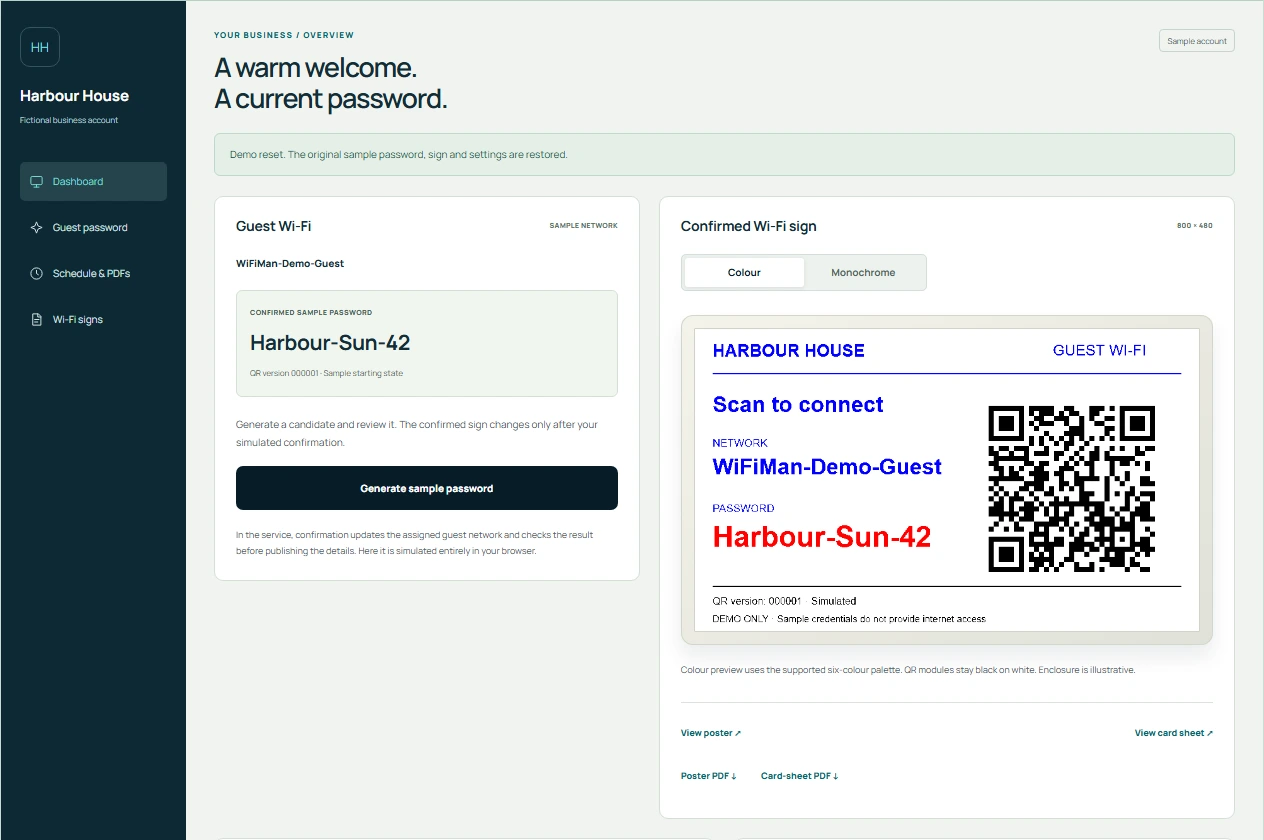
Review your next password before changing the network. Your confirmed QR sign stays unchanged until you confirm.
Choose an interval, start time and timezone, or leave automatic rotation off. You stay in control of when access details change.
Download a poster or a sheet of cards. Set separate email preferences for each, with recipients configured for your business.
Manage your branding, guest Wi-Fi and screen status in your own account. Linkify handles the integration and device setup.
AT YOUR DESK. ON YOUR PHONE.
See your confirmed details and screen status from a browser. No special app is needed for the dashboard.
Try the mobile-friendly demo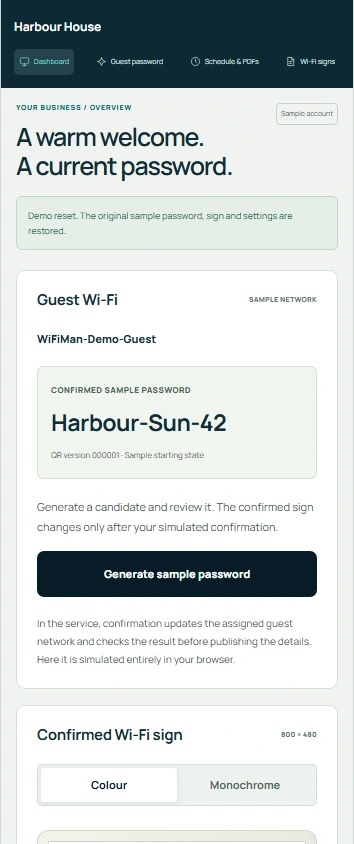
Every name, password and device shown in the demo is fictional.
ON BRAND. ON DISPLAY.
Start with a printed sign, add an e-paper display, or use both. We help you choose what fits.
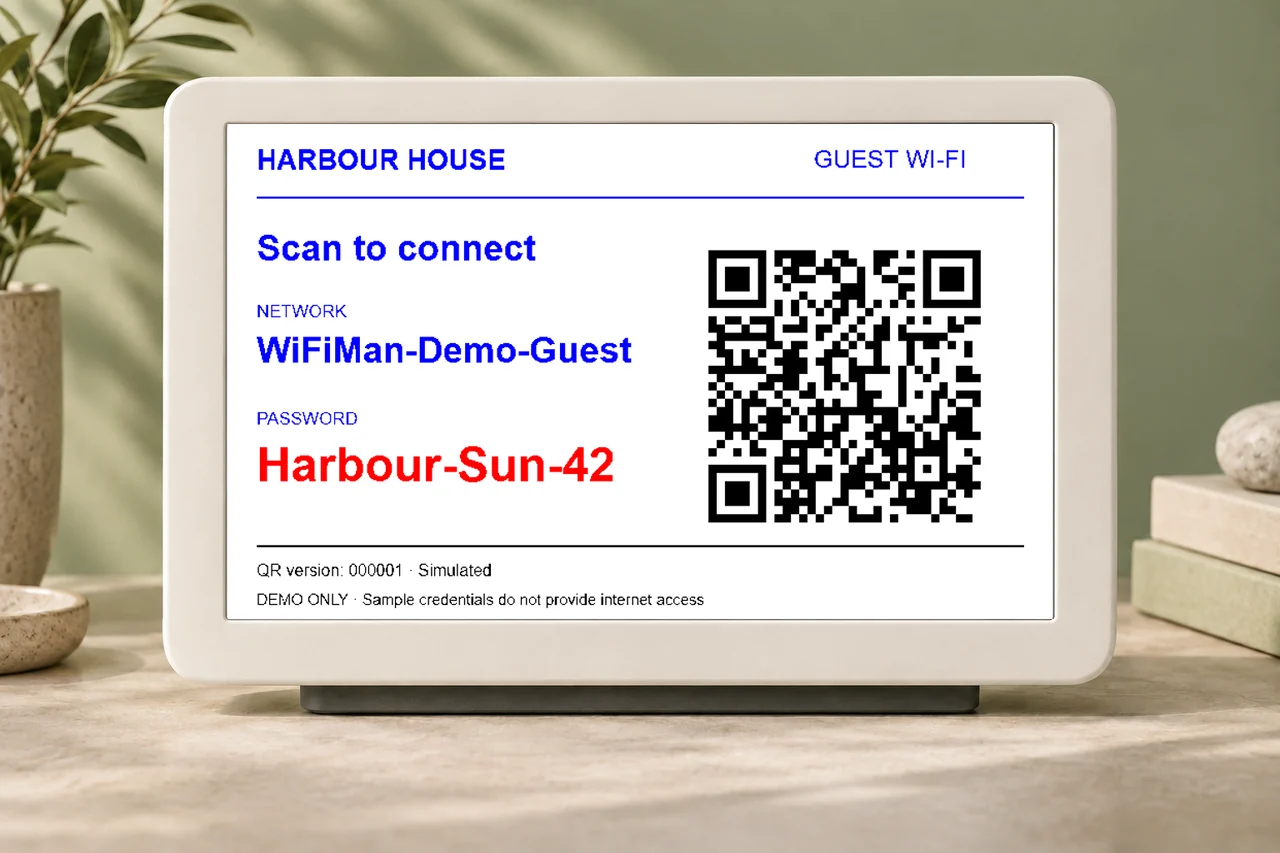
A dedicated e-paper sign makes your network details easy to find. Compatible monochrome and six-colour panels display artwork prepared for their supported palette.
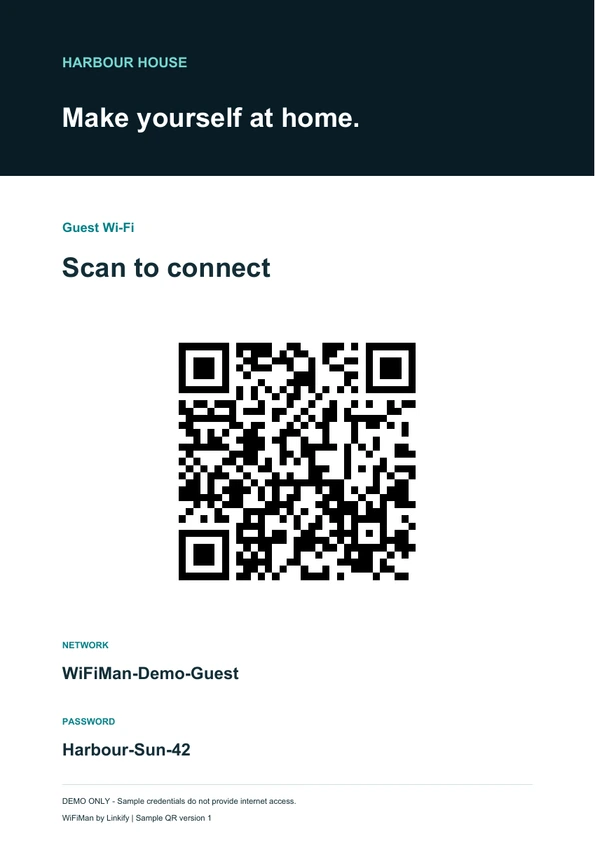
 PRINT. PLACE.
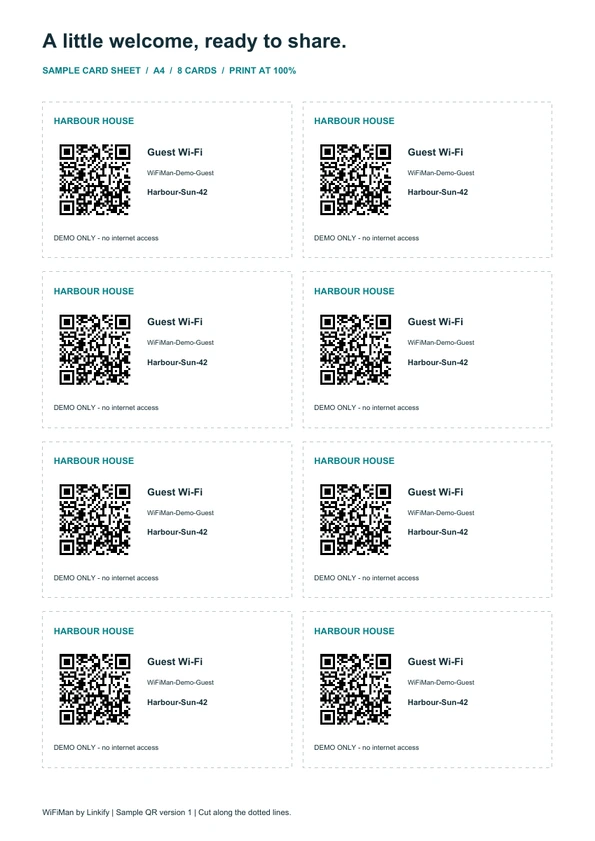
A poster for reception. Cards for a room, table or welcome pack. Print your branded PDFs locally and replace them whenever the password changes.
Demo downloads contain fictional credentials and provide no internet access.
A NATURAL FIT
Example settings, imagined to show the possibilities. These are illustrative mockups, not customer installations.
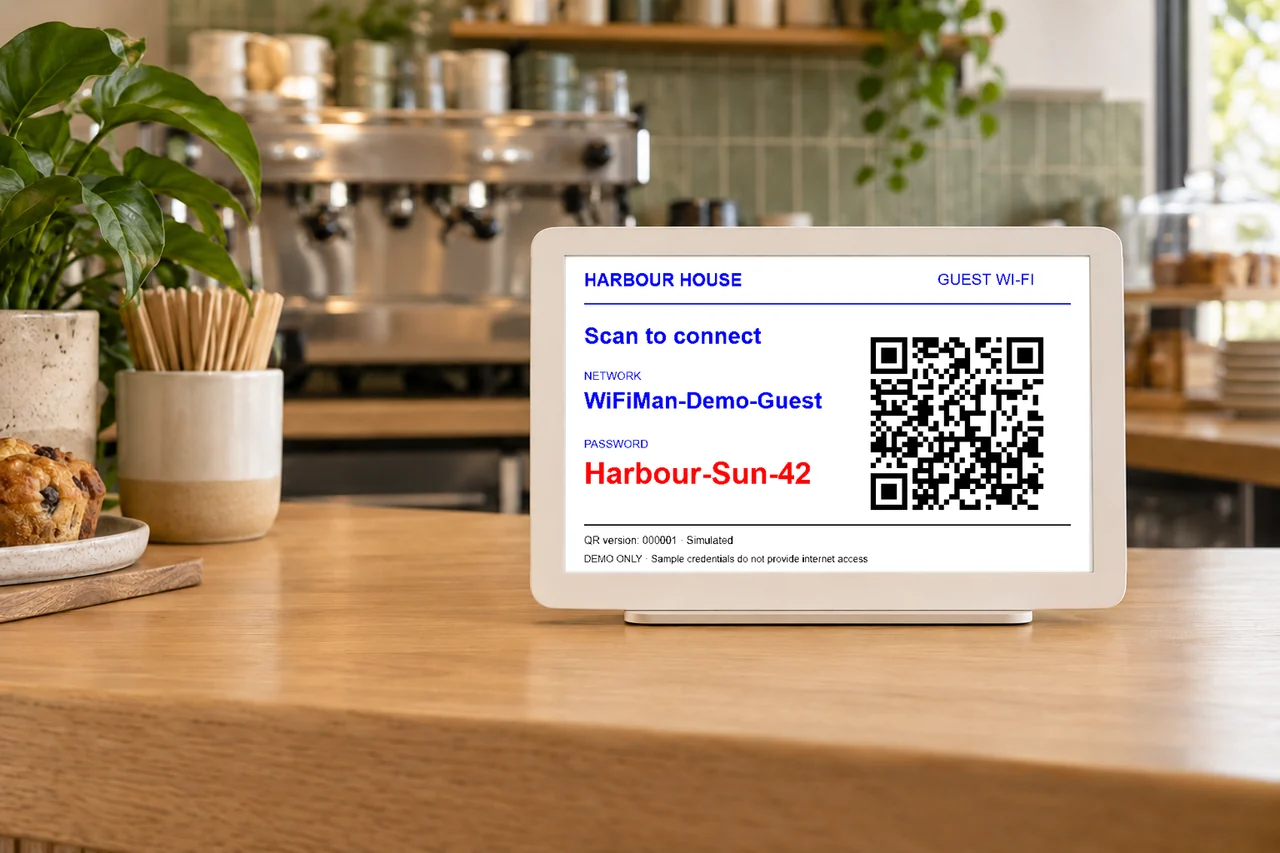
Less asking at the counter. More time for the coffee.
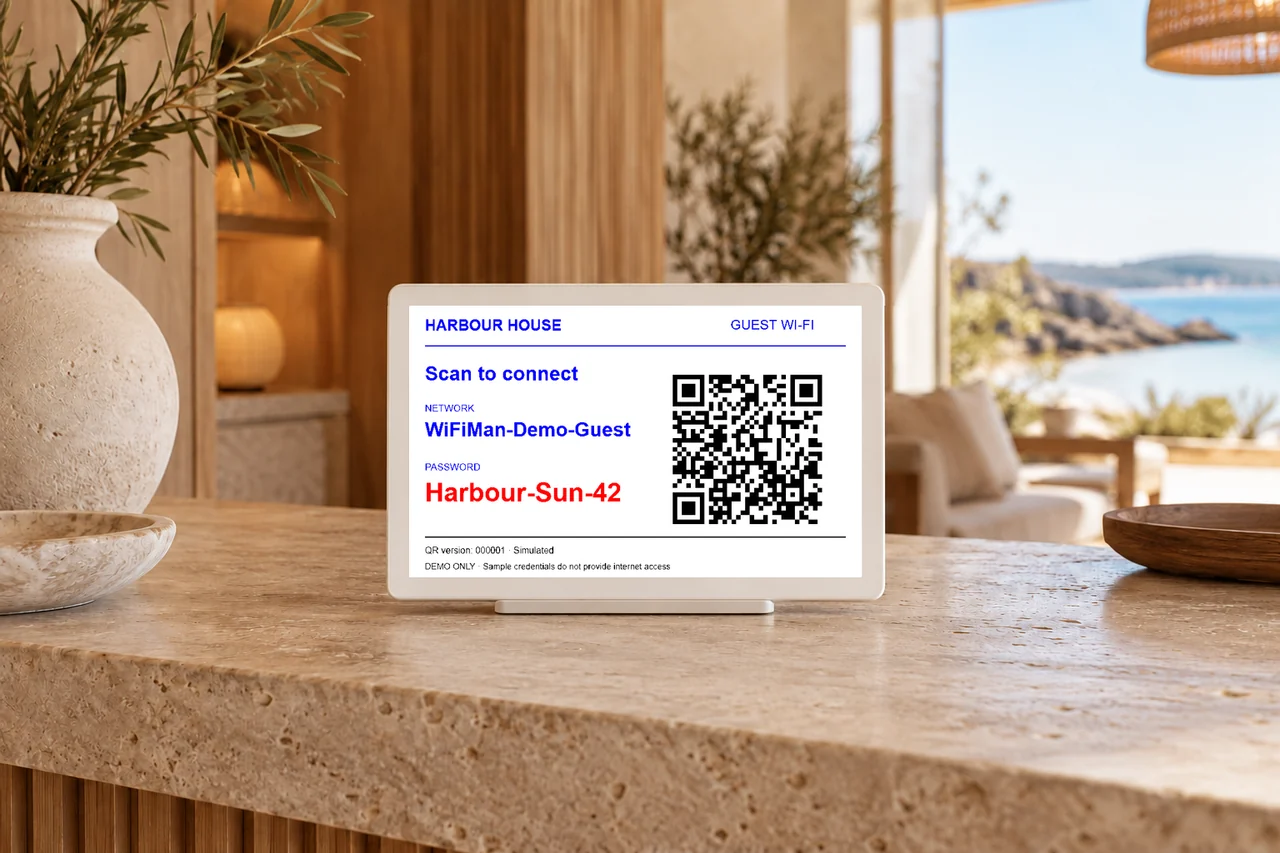
A thoughtful welcome at reception and in the room.
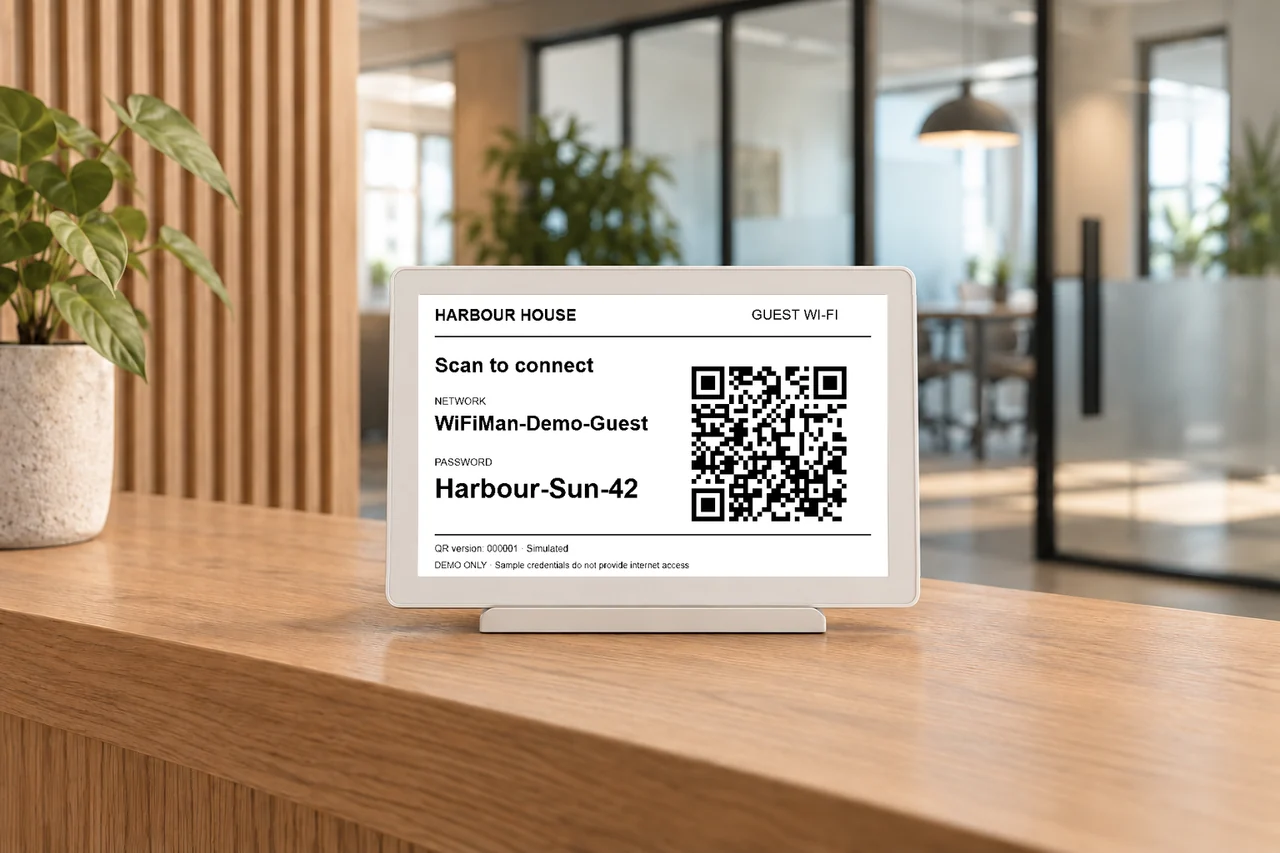
Make arriving for the meeting a little easier.
THE SERVICE BEHIND THE SIGN
WiFiMan is a Linkify service, with the setup and support agreed around your venue. Your quote makes the different parts clear.
Let’s talk about your venueYour business account, password workflow, optional scheduling, branded downloads and screen status.
Equipment checks, provider-managed UniFi configuration, your branding and guidance for your team.
Compatible e-paper displays, quantity, placement and setup, quoted separately for your space.
A Linkify contact for the managed service. The scope and support arrangements are set out in your quote.
Yes, if your network equipment is compatible. WiFiMan manages the guest network and how its connection details are shared. It does not replace your internet service, improve your coverage by itself, or make every router compatible. We assess your setup first.
The service integrates with supported UniFi networks. Linkify checks your console, software, guest network and access permissions before setup. Optional displays include supported Seeed reTerminal E1001 and E1002 models and the XIAO 7.5-inch ePaper Panel. We confirm the exact model and installation before quoting. UniFi is a Ubiquiti brand; WiFiMan by Linkify is an independent service.
Generate a candidate, preview it, then confirm when you are ready. Generating a password alone does not change the network or the confirmed sign. The management service checks the network response before publishing confirmed details. Changing a password can require guests to reconnect.
Yes. Optional schedules support intervals in hours, days, weeks or months, with a start date, time and timezone. Linkify helps choose a timing that suits your venue. A saved schedule is not proof that a rotation has completed; the dashboard reports the result.
Yes. Download a poster PDF or a card-sheet PDF and print locally. Each has its own email option, so you can choose posters, cards, both or neither for configured recipients. Printed material cannot update itself: replace it after the guest password changes.
A configured, connected screen checks in for the latest artwork. Timing depends on its settings and connectivity. A dashboard check-in or image request does not prove that the physical panel refreshed. An offline e-paper screen can keep showing an older image. Check the visible details and dashboard status. Screens use suitable, stable 2.4 GHz staff or device Wi-Fi.
We can configure separate business accounts and guest-network assignments for suitable locations. Each account has its own branding, settings and screen status. We will confirm the account structure and equipment for your locations during onboarding; a single customer dashboard spanning every location is not promised.
We review your existing equipment and guest network, agree the service scope, configure the UniFi integration and your business account, and add your branding. If you choose display hardware, we set it up and check it at your venue. You receive guidance for password changes, printing and checking screen status.
Request a quote for your venue. Your quote will distinguish hosted management, initial setup, any optional display hardware and ongoing support. Pricing, support arrangements and any equipment changes are agreed before you proceed.
LESS FRICTION. MORE WELCOME.
Tell us about your venue. We’ll help you work out the fit.